Interchangeable artworks#
Grip enables use to have multiple artworks per products and freely switch between them.
To enable this feature for your Digital Twin, several requirements must be satisfied. These are discussed in this section.
UV set up#
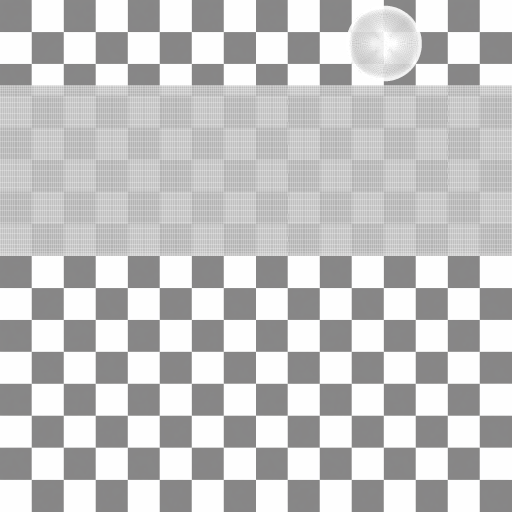
Interchangeable label artworks works with a single texture All meshes that show parts of the artwork need to have UVs set up that they share
Example uv sets#
The image below shows the two uv sets from a bottle artwork mesh (long stripe in the middle) and the cap mesh (circle at the top) displayed together.
Texture format#
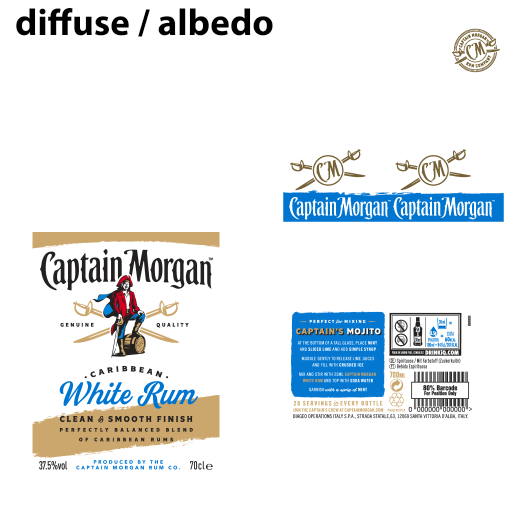
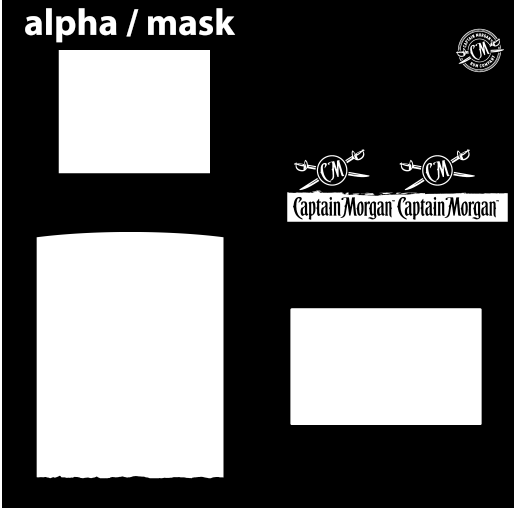
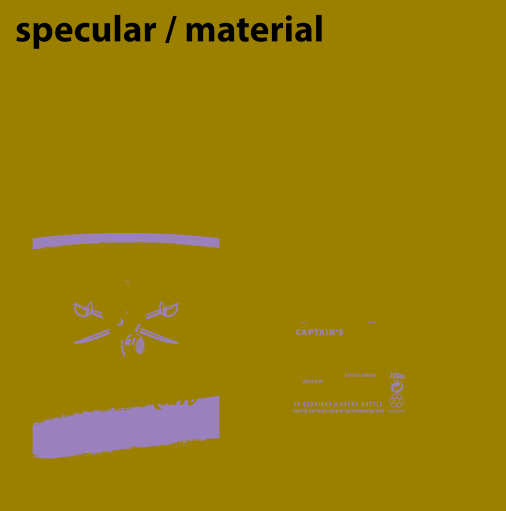
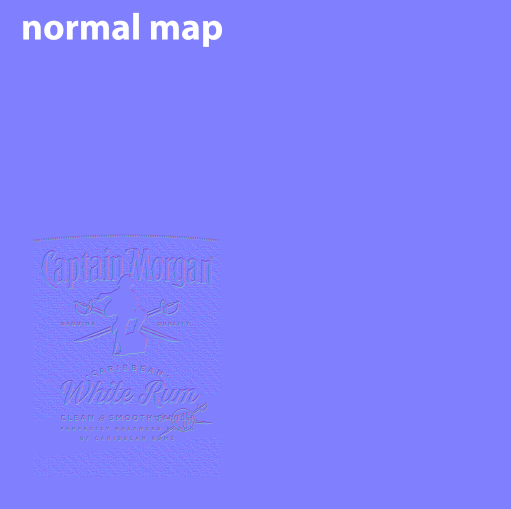
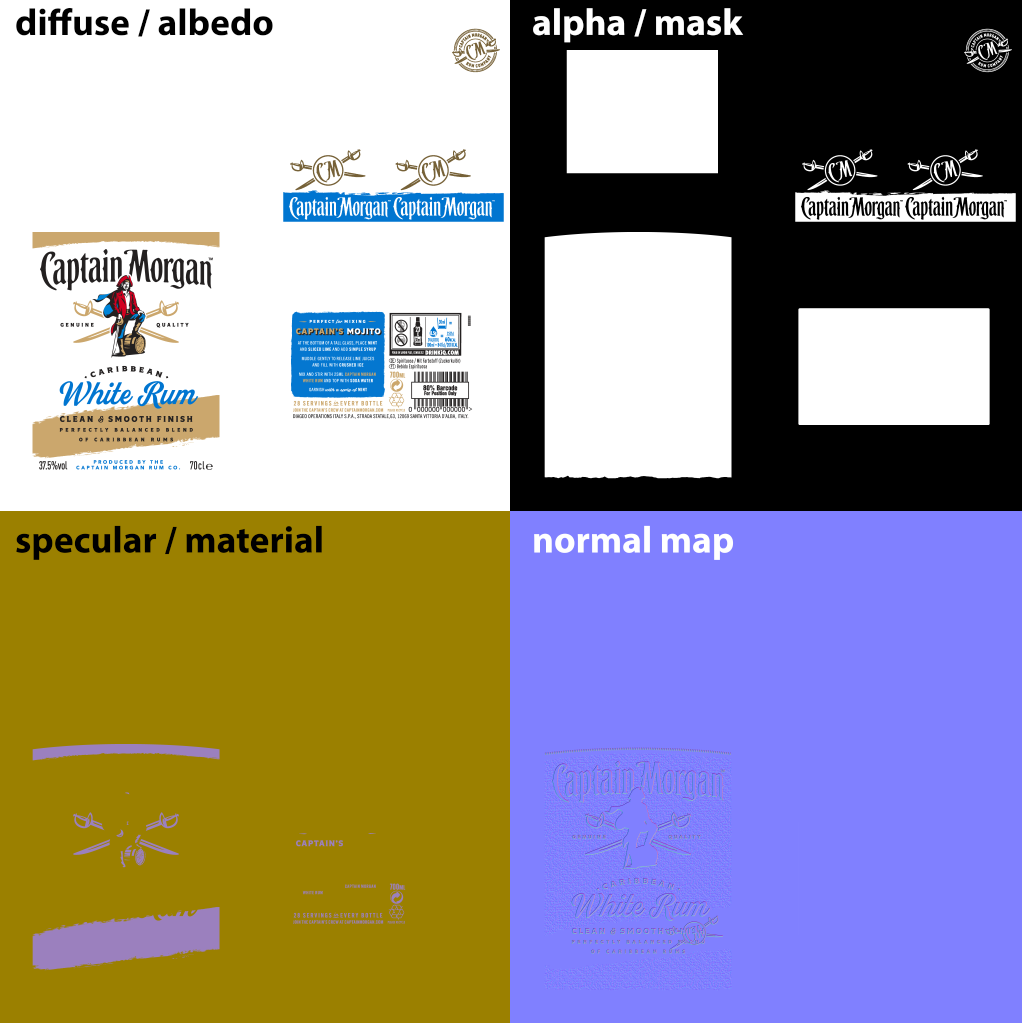
The artwork texture is composed out of 4 quadrants. Each pixel from the diffuse quadrant has a matching pixel in any of the other quadrants, when the artwork texture is loaded in the artwork material in 3Ds Max the texture is cut in 4 and each quadrant will control different material properties.
Diffuse / albedo |
|
|---|---|
|
The diffuse quadrant controls the color for each pixel |
Alpha / mask |
|
|
The alpha quadrant controls the opacity and transparency of each pixel from the diffuse quadrant. |
Specular / materials |
|
|
The specular quadrant controls the material properties of each pixel from the diffuse quadrant. When the specular quadrant is composed each specular layer is added with add or substract depending on the value if is positive or negative. The first layer is the base layer. Ex.: if base layer is set to gloss: 0.625 ; spec: 0.50 ; metal: 0and you add a spot plate that has gloss: 0.625 ; spec: 0.15 ; metal: 0 the result will be gloss: 0.625 ; spec: 0.65 ; metal: 0 Ex.: if base layer is set to gloss: 0.625 ; spec: 0.50 ; metal: 0 and you add a spot plate that has gloss: 0.625 ; spec: -0.15 ; metal: 0 the result will be gloss: 0.625 ; spec: 0.35 ; metal: 0 |
Normal map |
|
|
The normal map quadrant controls the direction of reflected light for each pixel from the diffuse quadrant. |